Creating a Microsoft OneDrive API
Compared with the shared API resources built into Rclone, a self-built private API can bring a better experience. If you need to use a private API, you should provide the tokens.
Steps
1. Get the client_id
Go to Microsoft Azure app registrations and click New registration.
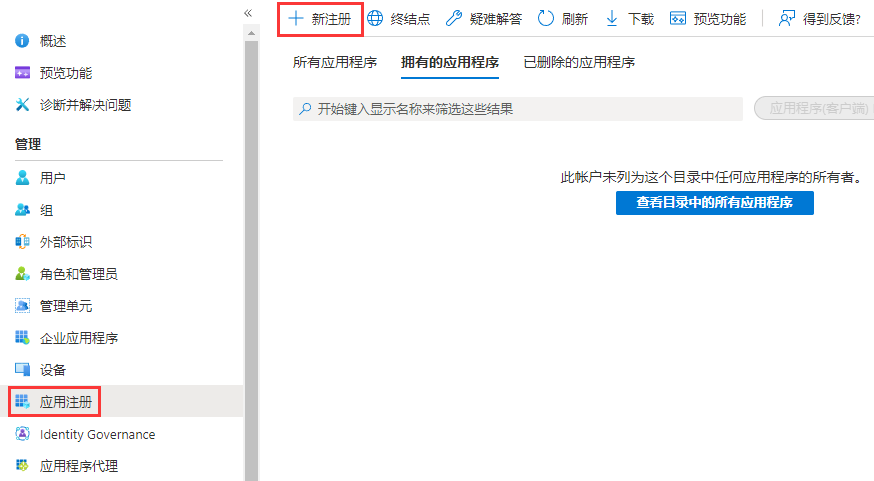
App registration Configure as shown in the figure; for the Redirect URI, fill in
http://localhost.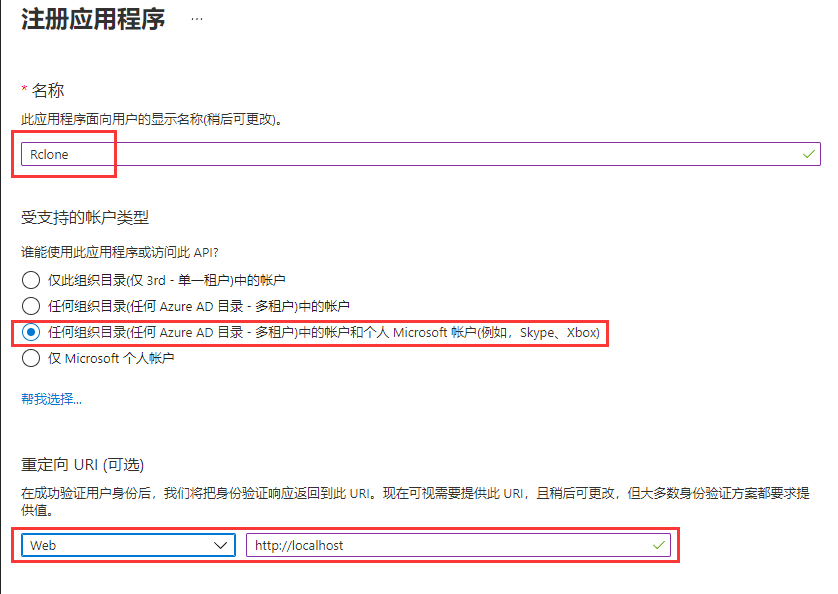
Register an application After the creation succeeds, you will see the following content, in which the Application (client) ID is the
client_id.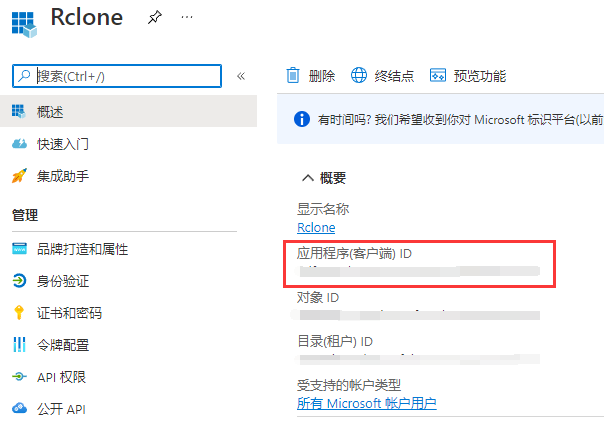
client_id
2. Get the client_secret
Add a client secret in the order shown in the figure; the expiry period is currently at most two years.
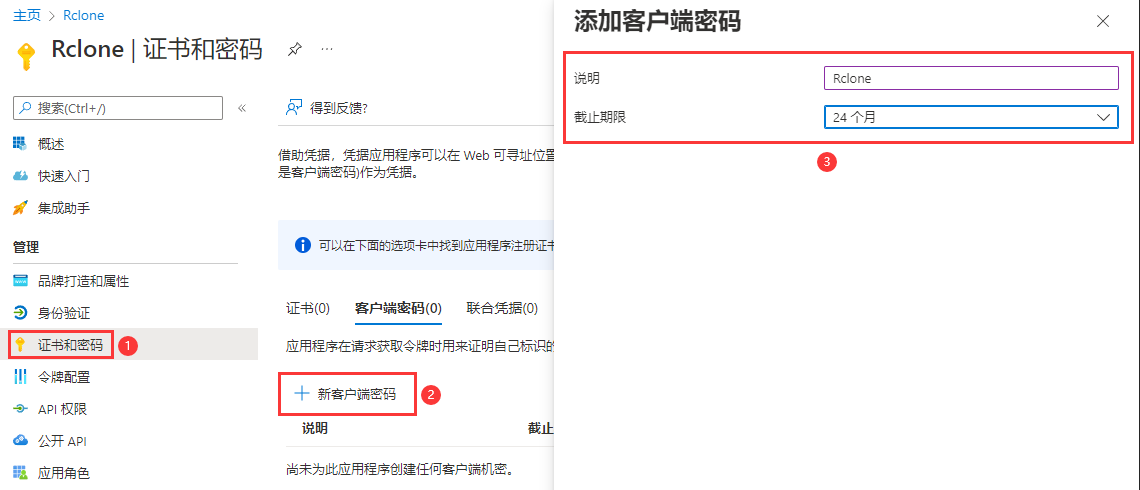
Add a client secret Then you can see the
client_secret. Except for right after it is created, the client secret value cannot be viewed again afterwards. Be sure to save the secret at creation time before leaving the page.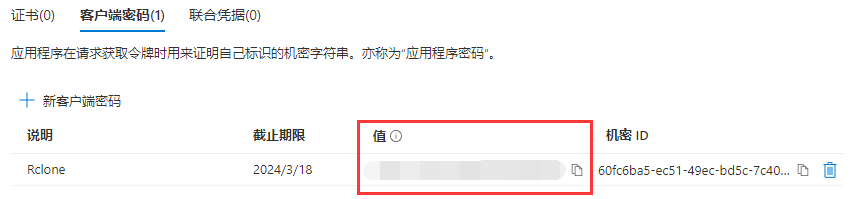
client_secret
3. Set API Permissions
Enable the corresponding API permissions as shown below.
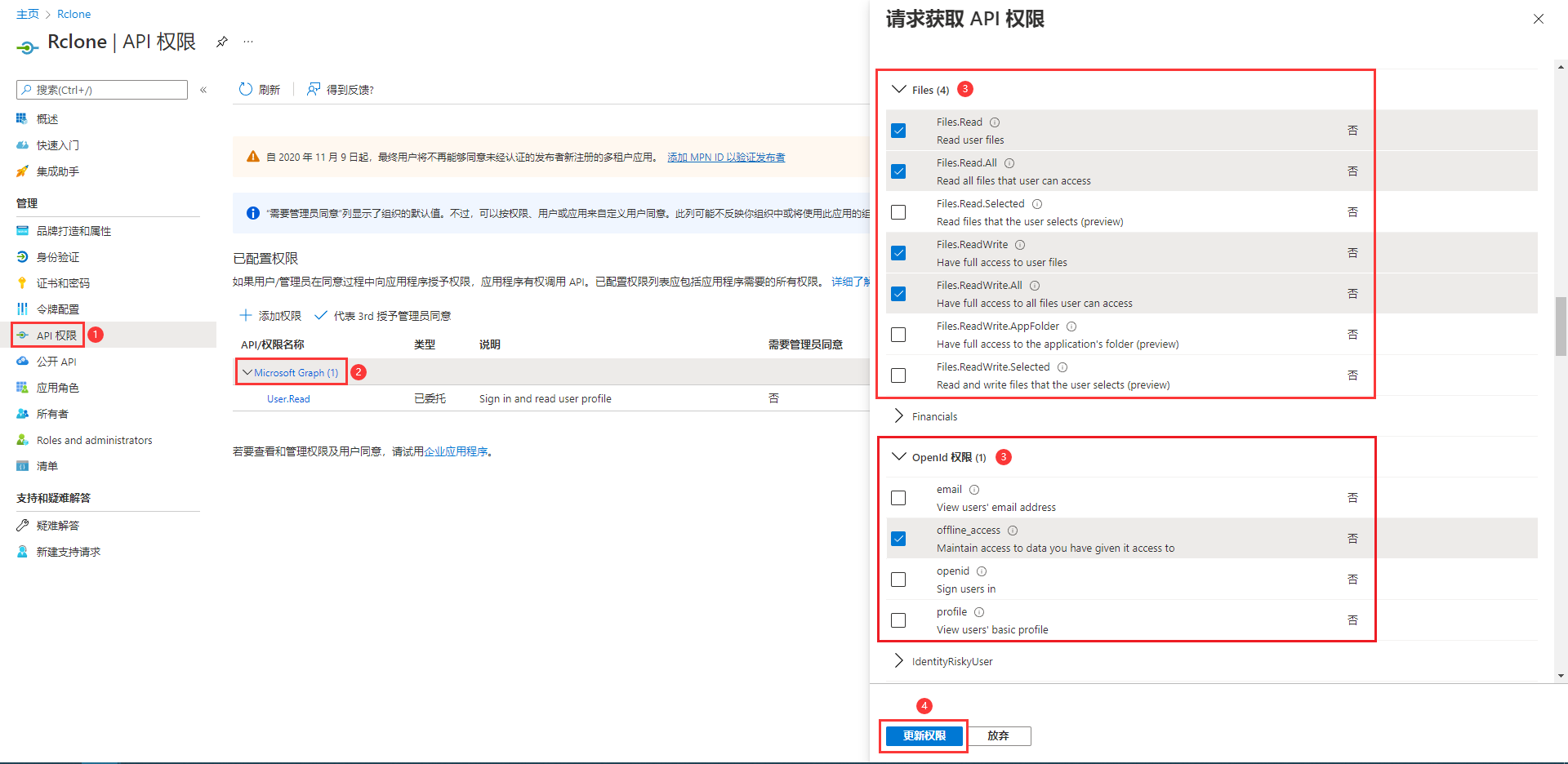
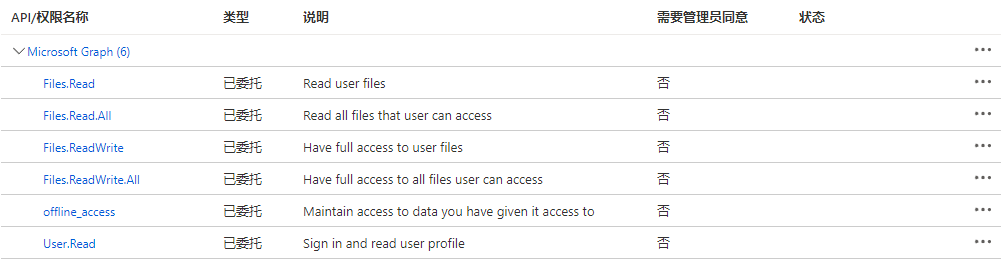
Request API permissions The final result is as shown; check it against the figure. At this point, the creation and configuration of the Microsoft OneDrive API is complete.
Confirm API permissions