Creating a Google OAuth Client ID
Compared with the shared API resources built into Rclone, a self-built private API can bring a better experience. If you need to use a private API, you should provide the OAuth client ID.
Steps
1. Enable the Google Drive API
Go to Google Drive API and enable it as shown in the figure.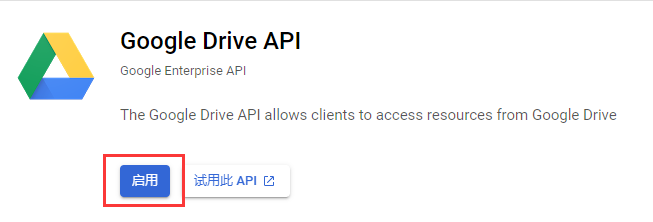
2. Create a New Project
After enabling it, you will be prompted to create a new API project; go create it as shown in the figure: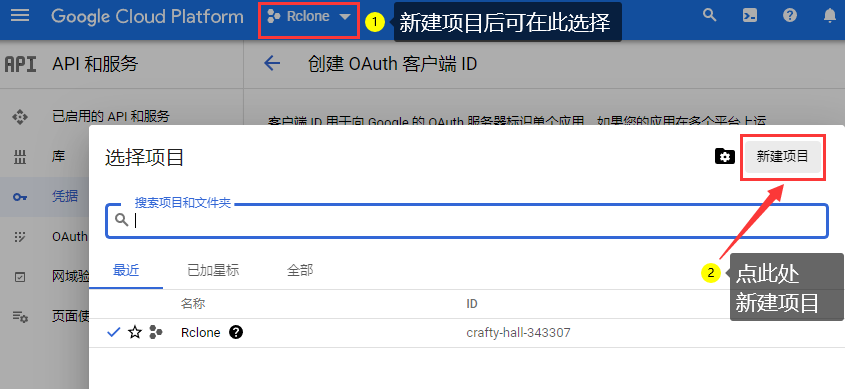
Project name is up to you; English is preferred. Project ID can be modified if needed; otherwise keep the defaults for everything else.
3. Configure the Consent Screen
When creating an OAuth client ID for the first time, you need to configure the consent screen, i.e. the OAuth consent screen in the left sidebar:
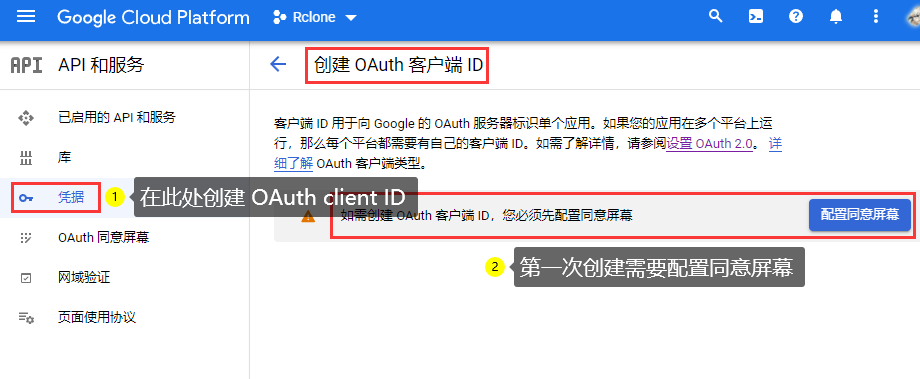
Configure the consent screen 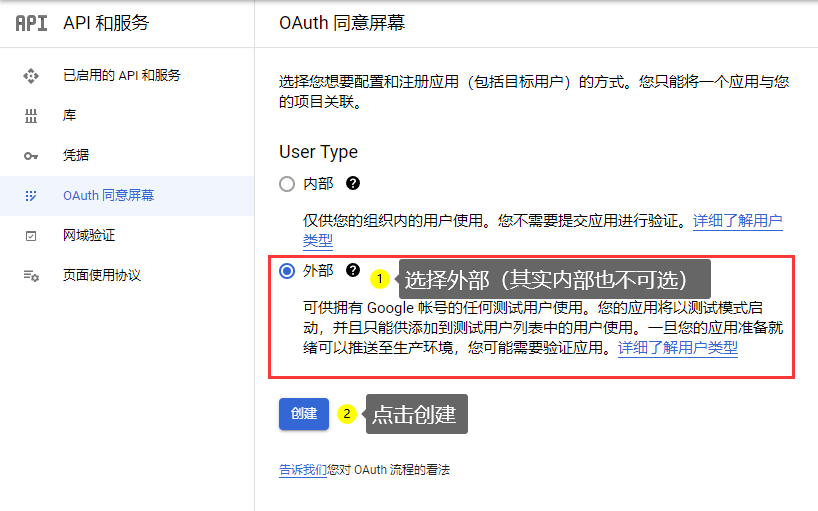
Create the OAuth consent screen
Apart from the required fields, the rest can be left empty; there are no requirements, so just keep all the defaults.Then add account permissions; the steps are shown in the figure:
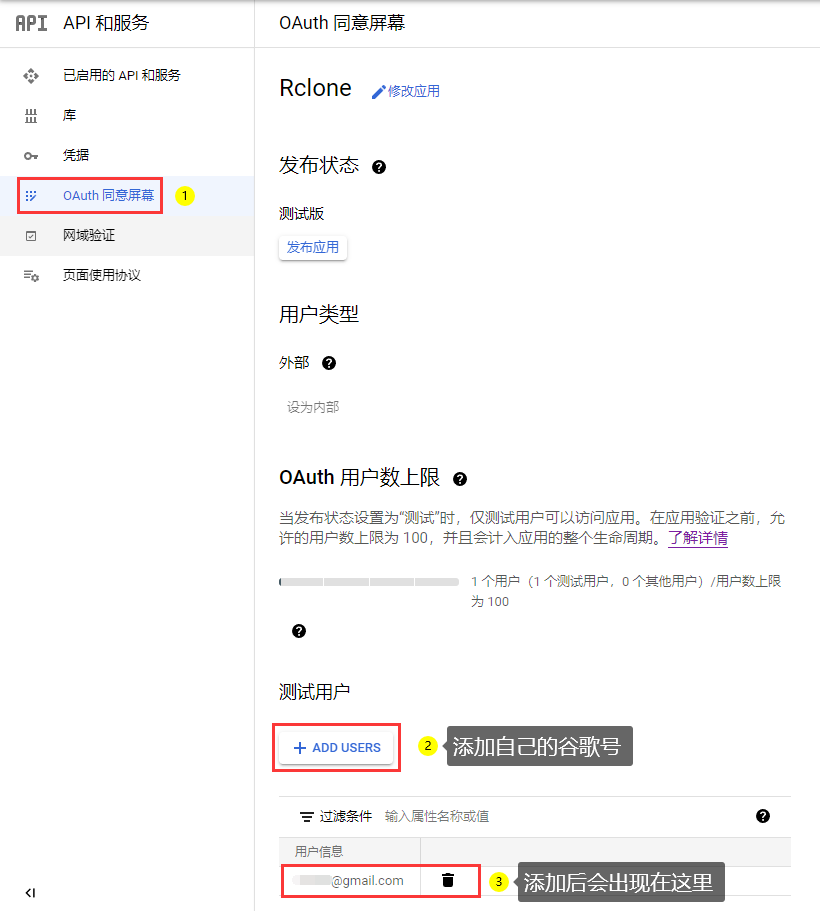
Add account permissions
4. Create the OAuth Client ID
Create the OAuth client ID as shown in the figure: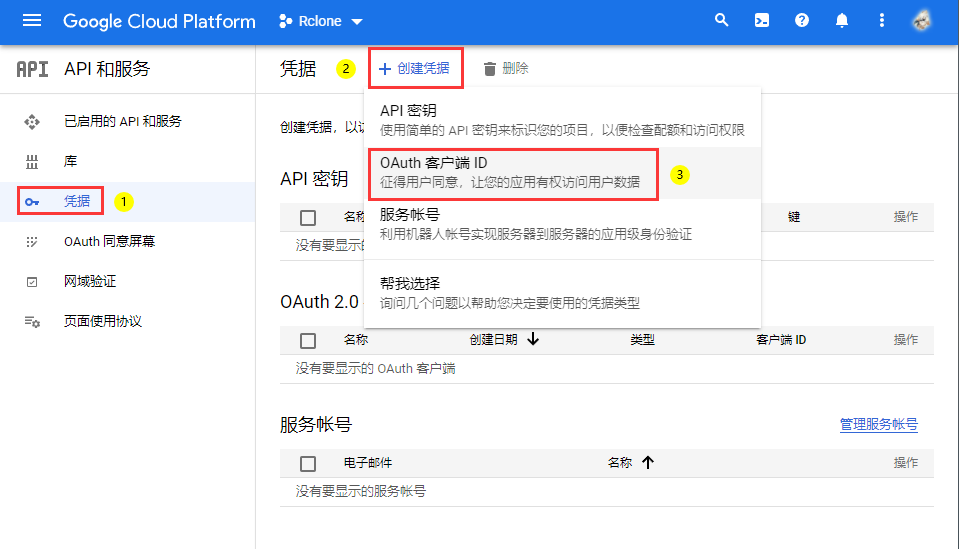
Configure it as follows: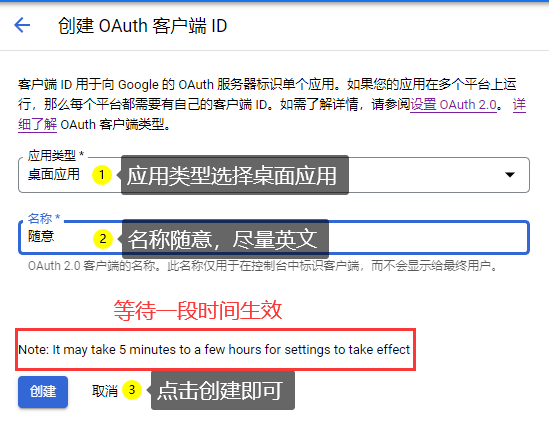
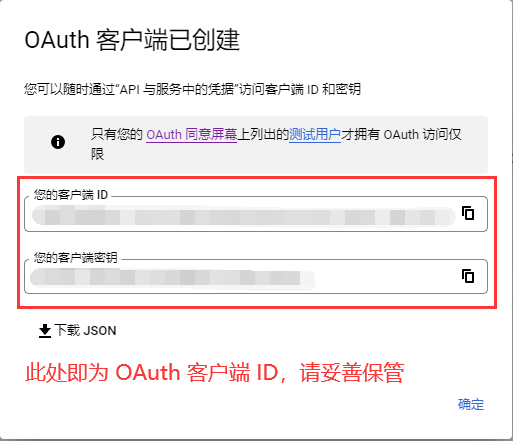
Then you will get the OAuth client ID; please keep it safe: